Friday, 26 August 2016

How To Solve Download Pending Problem In android


Android downloads pending
When you are trying to download any app from the Google Play Store.some times its not downloaded. It show downloads pending.
If your play store show such kind of problem.you can try this tricks.
Go to setting > Apps or Application manager > All > Google Play Store > Clear data > clear cache.
After this you can downloads any app from the Google Play Store.

How To Delete Usb History From The Registry


 Delete USB history
Punitive is portable device to carry data. Through pen drive you can share data to anyone .but some organization plugging of pen drive is restricted.in this case if you plug your pen drive in such kind of organization by mistake.so you are in trouble.
So I have trick to delete pen drive history.

Step 1

If you want to see when you were plugged pen drive last time. To download this software.(Click Here)
It show you all history.

Step 2

To delete pen drive history there is software called USBObellian.this software delete all pen drive history from registry. To download this software from here.(Click Here)

When you plug pen drive, the pen drive history are stored in registry.
If you want to check usb history from the registry follow this Steps
Press windows key + R  and type Regedit in Run dialog box
HKEY_LOCAL_MACHINE\SYSTEM\CurrentControlSet\Enum\USBSTOR  in that you get all USBHistory
To delete usb history double click on the USBObellian setup.
Check the box Do real clean and uncheck save backup .reg file and Click the Clean button.
By this you can successfully clean USB History.

Wednesday, 1 June 2016

How to create or sign up digital locker account & upload file in digital locker


DigiLocker is a "digital locker" service launched by the government of india in February 2015 to provide a secure dedicated personal electronic space for storing the documents of resident Indian citizens. The space can be utilized for storing personal documents like University certificates, PAN cards, voter id cards, etc.

The biggest feature is that the user of the digital locker from anywhere and at any time can submit their documents through it. They may retain free, certified copies of documents to any government job where there is mandatory to photocopy Bjhay Mulprati or URL of your locker can give. From there you can see the official certificates. In this way the Indians do not have to walk everywhere with the necessary documents.


Let’s see how to use of digital locker
1. Click the website https://digitallocker.gov.in/


2. For registration click sign up button.


3. Enter your mobile number.


4. Enter your aadhar number.

Click on use OPT. and click continue button.


4. Enter the OPT which is sent to your addhar registered mobile number. Then click verify button.


Or if you don’t receive OPT click here.


After than you have successfully register with digital locker.

How to upload file in digital locker

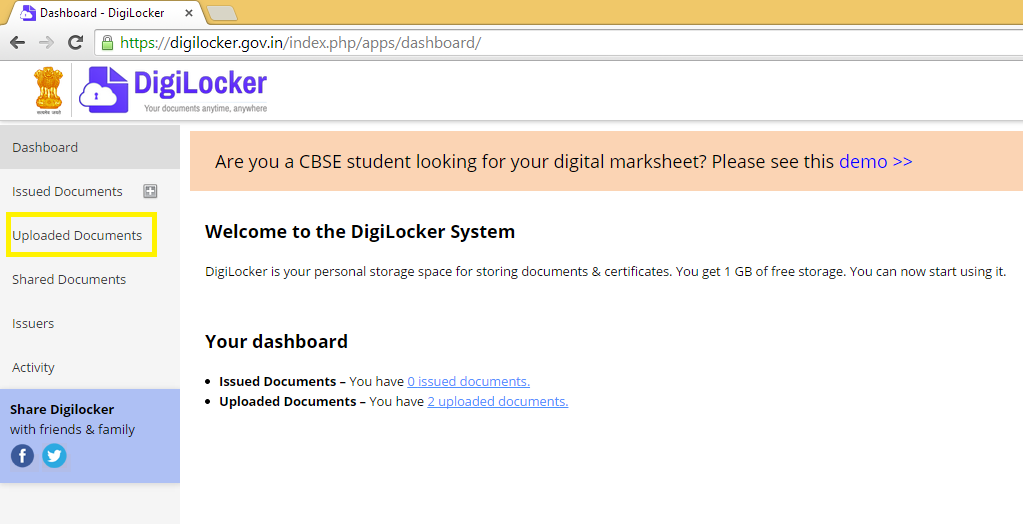
Once  when you successfully created digital locker account.you will see your dashboard.

1.    To upload a file you will need to click upload document (as shown in the fig.)


2. Click upload 


1     3.Browse for the file which file you want load. And then click open.


1 4.    Now the uploading procedure gets start.


b By this you can create digital locker account or you can upload file to digital locker.

Tuesday, 31 May 2016

HOW TO DELETE STUCK PRINT JOBS


Print Jobs the processes of giving print command to printer to print a file is known as Print Job.
Print spooler is path where the print jobs are stored.
Some time when you give a print command to   your printer to print the file. It doesn’t respond because the number of print jobs are store in print spooler.
If your printer doesn’t print the file instantly. Don’t worry I’ve solution for this.
So let’s join the tutorial.

Step 1

Open run (press windows key + R)
And type services.msc, click ok .
Select print spooler service from the services list. Right click on the print spooler and select stop.(as shown in the figure).


Step 2
To delete the print jobs follow this step C:\Windows\System32\spool\PRINTERS

And select all print jobs and delete the print jobs.

Step 3
In step 1 we stop the print spooler services to delete the print jobs.
Here we wiil start the print spooler services.to start the services follow same step.
Again open run and type services.msc
Right click on the print spooler and select start. 


By this you can print your document easily.